How to Generate PDFs from Laravel Blade Without Running Chromium
Build a production-ready invoice from an existing Blade view, understand how local assets reach the renderer, and decide when managed Chromium is the right tradeoff.

On this page
Generating a PDF from Laravel looks like a formatting task until it reaches production. Your controller renders a Blade view, but the final document also depends on a browser binary, fonts, images, compiled CSS, page-break behavior, timeouts, and enough capacity to survive a burst of invoice jobs.
This guide builds a real invoice flow from a local Blade view. It also shows where rendering responsibility lives, how private assets reach Chromium, and which production checks matter before you put the result behind a download button or queue.
The production problem behind a simple PDF#
Laravel already knows how to turn a Blade view into HTML. The difficult part is turning that HTML into the same PDF every time while the application is deployed across local machines, CI, containers, and production workers.
A browser-backed renderer must answer operational questions that do not exist in a normal web response:
- Which Chromium version is installed, and who updates it?
- Can the render process access the same fonts and images as the Laravel application?
- What happens when JavaScript never becomes ready or a remote asset stalls?
- How many documents can render at once before memory pressure affects the application?
- Can a failed render be correlated with the request that created it?
The key architectural decision is therefore not only which library has the shortest API. It is where the browser runs and who owns its lifecycle.
Choose the rendering approach deliberately#
Laravel teams usually choose between an HTML-to-PDF engine, a browser library, and a managed browser-backed API. Each can be correct in a different environment.
| Approach | Best when | Main tradeoff |
|---|---|---|
| HTML-to-PDF engine | The document uses conservative HTML and CSS and must render locally | Modern CSS and browser behavior can be limited |
| Self-hosted Chromium | You need low-level browser control and can operate the runtime | Your team owns binaries, sandboxing, capacity, queues, and recovery |
| Managed Chromium API | You want browser-quality output without browser operations in the Laravel runtime | Each render depends on a network service and its documented limits |
Use self-hosted Chromium when offline rendering, strict data locality, or browser-level customization is a hard requirement. Use managed rendering when the PDF is a product feature but operating a browser platform is not a useful differentiator for your team.
Practical rule: test the most complex document you expect to render, not only a one-line receipt. Fonts, long tables, page breaks, headers, and local images expose integration problems much earlier.
Build the invoice as a normal Blade view#
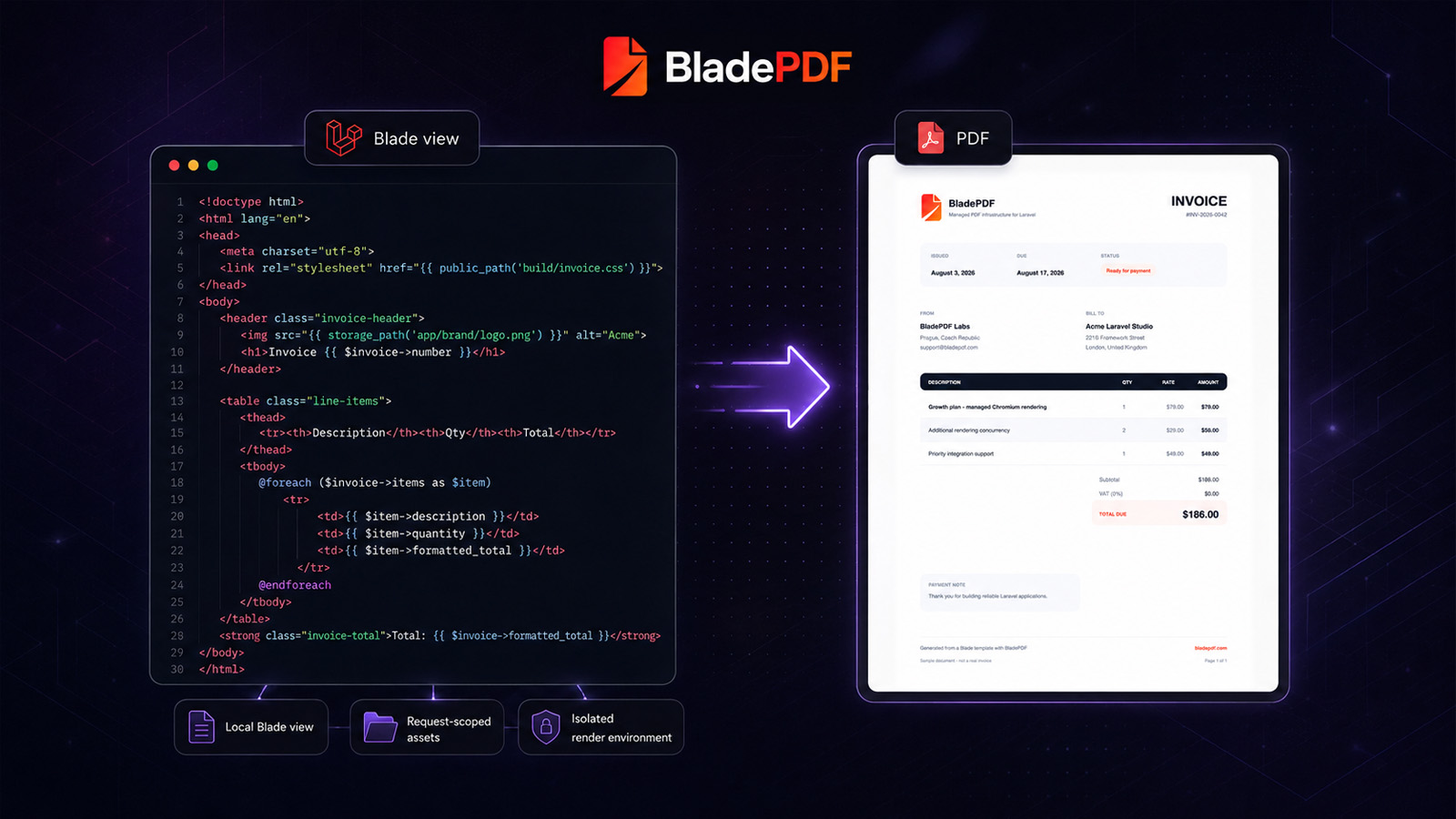
Keep document templates close to the data and presentation logic they already use. A PDF view can receive an Eloquent model, use Blade components, and reference compiled application assets just like another server-rendered view.
<!doctype html>
<html lang="en">
<head>
    <meta charset="utf-8">
    <link rel="stylesheet" href="{{ public_path('build/invoice.css') }}">
</head>
<body>
    <header class="invoice-header">
        <img src="{{ storage_path('app/brand/logo.png') }}" alt="Acme">
        <h1>Invoice {{ $invoice->number }}</h1>
    </header>

    <table class="line-items">
        <thead>
            <tr><th>Description</th><th>Qty</th><th>Total</th></tr>
        </thead>
        <tbody>
            @foreach ($invoice->items as $item)
                <tr>
                    <td>{{ $item->description }}</td>
                    <td>{{ $item->quantity }}</td>
                    <td>{{ $item->formatted_total }}</td>
                </tr>
            @endforeach
        </tbody>
    </table>

    <strong class="invoice-total">Total: {{ $invoice->formatted_total }}</strong>
</body>
</html>
The example deliberately references a compiled stylesheet and a private logo. Making every document asset public is unnecessary and can be a security smell. A PDF pipeline should give the renderer request-scoped access to the exact files it needs, then remove that access when the render finishes.
Render the view through BladePDF#
Install the Laravel package and add the API key described in the quickstart.
composer require bladepdf/laravel
The controller can then render the local view and return a Laravel download response:
<?php

namespace App\Http\Controllers;

use App\Models\Invoice;
use BladePDF\Laravel\Facades\BladePDF;

final class InvoiceController
{
    public function download(Invoice $invoice)
    {
        return BladePDF::fromView('pdf.invoice', [
            'invoice' => $invoice->load('items'),
        ])
            ->templateName('Customer invoice')
            ->reference($invoice->uuid)
            ->format('A4')
            ->showBackground()
            ->render()
            ->download("invoice-{$invoice->number}.pdf");
    }
}
fromView() compiles the selected view inside Laravel. That is important: Blade directives, application services, translations, and Eloquent data remain in your application. BladePDF receives the resulting HTML plus the assets required to render it; it does not execute your Laravel application remotely.
What happens to local CSS, images, and fonts#
Browser rendering fails surprisingly often because the HTML reaches Chromium while its assets do not. A URL that works in a normal browser may point to localhost, a private storage path, or a host that is unreachable from an isolated render process.
BladePDF resolves common references in rendered HTML and nested CSS, attaches local files to the request, and rewrites those references before the managed browser loads the document.
This request-scoped pipeline provides three useful properties:
- Private files do not need a permanent public URL.
- The browser receives the same asset bytes the application selected for that render.
- A tenant-specific logo or stylesheet can be attached or overridden without changing the shared template.
External URLs can still be useful, but they introduce another dependency into the render. Prefer local, versioned assets for brand-critical fonts, logos, and CSS when deterministic output matters.
Make the render production-ready#
A successful local download proves the template can render. Production readiness requires a few additional decisions.
Give every render a reference#
Attach an application-level identifier such as an invoice UUID. The reference makes logs and support traces meaningful without coupling your database to a provider-specific request ID.
Choose synchronous or asynchronous delivery#
Synchronous rendering is appropriate for an immediate preview or download. Use an asynchronous render when the user does not need to wait for the bytes, especially for batch exports and scheduled reports. Stored asynchronous renders should be paired with a signed webhook so the application can react to success or failure.
Design for print, not only for the browser#
Use explicit page size and margins, enable printed backgrounds when the design requires them, and test long content. Avoid splitting totals, signatures, or a table row across pages. Repeat table headers when a line-item table can span multiple pages.
Treat timeouts as product behavior#
Do not leave a UI spinner running indefinitely. Decide how the application reports a timeout, whether the operation can be retried safely, and how duplicate invoice requests are recognized. A retry should not create conflicting business records just because the renderer was slow.
Keep sensitive data scoped to the document#
Only pass fields the template needs. Avoid embedding debug payloads, internal notes, or broad model serialization in the HTML. The PDF often leaves the application through email, a customer portal, or a signed download link, so its data boundary deserves the same review as an API response.
Verify the output with a representative fixture#
Create one fixture that combines the failure-prone parts of your real documents:
- a custom font with bold and regular weights,
- a local logo and at least one CSS background image,
- a table long enough to cross a page boundary,
- a header or footer with a page number,
- currency, dates, and any non-ASCII characters your customers use,
- both the smallest and largest realistic dataset.
Run that fixture in CI or during dependency upgrades. Pixel-perfect visual snapshots are optional, but at minimum verify that the render succeeds, the PDF has the expected page count, and the document contains the expected reference text.
When managed rendering is not the right choice#
BladePDF intentionally trades some low-level browser control for a narrower Laravel-focused API. It is not the best boundary for every system.
Keep rendering inside your own infrastructure when documents must be generated with no network dependency, policy requires every byte to remain within a specific environment, or the template needs unrestricted browser automation. A managed service is most valuable when its operational boundary removes more work than its network boundary introduces.
That tradeoff should be explicit. The goal is not to eliminate Chromium; browser-quality HTML rendering still needs a browser. The goal is to decide whether Chromium belongs inside your Laravel deployment.
Laravel PDF production checklist#
Before shipping the first customer-facing document, confirm that:
- the template has a stable, descriptive URL or application action;
- local CSS, images, and fonts render without a public development server;
- long tables and headings break across pages predictably;
- every render has a traceable application reference;
- timeouts and retries have user-visible behavior;
- logs do not expose document payloads or secrets;
- the largest realistic fixture stays within plan and payload limits;
- a downloaded PDF has the correct filename and content type.
Download the sample invoice#
The invoice below is a real A4 PDF generated for this guide. Use it to inspect the expected hierarchy, table spacing, totals, and print-safe footer treatment.
Download the sample invoiceA4 PDF · 1 page · example dataThe most maintainable PDF pipeline is the one your team can explain during an incident. Laravel should own the data and Blade presentation. The rendering layer should have a clear owner, explicit limits, and enough observability to turn “the invoice looks wrong” into a traceable engineering problem.
Continue reading
Laravel Browsershot in production
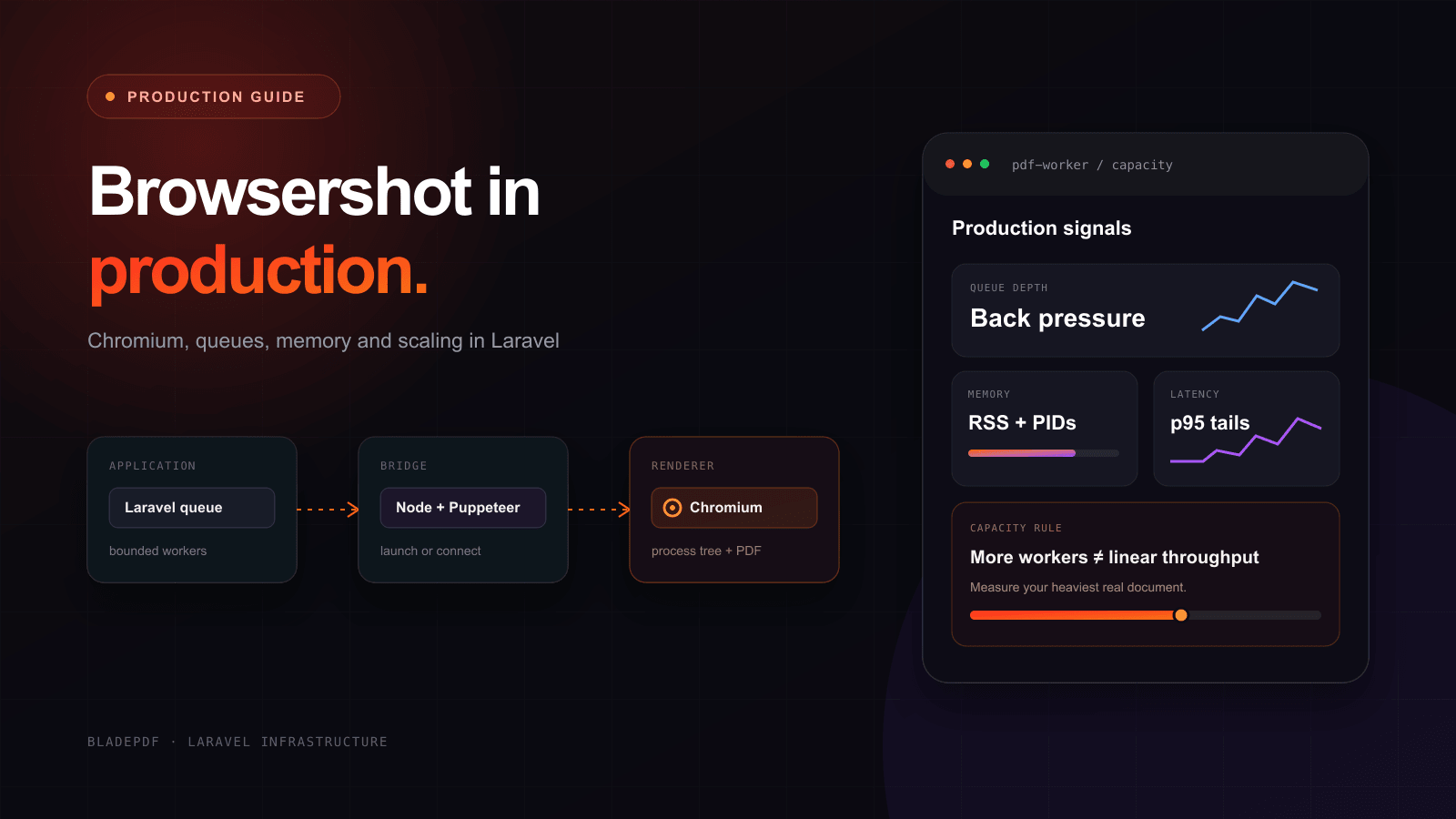
See what it takes to run Browsershot reliably in production—from Chromium and Docker to queue capacity, memory, assets, security, and persistent browsers.
Laravel PDF benchmark: five renderers compared
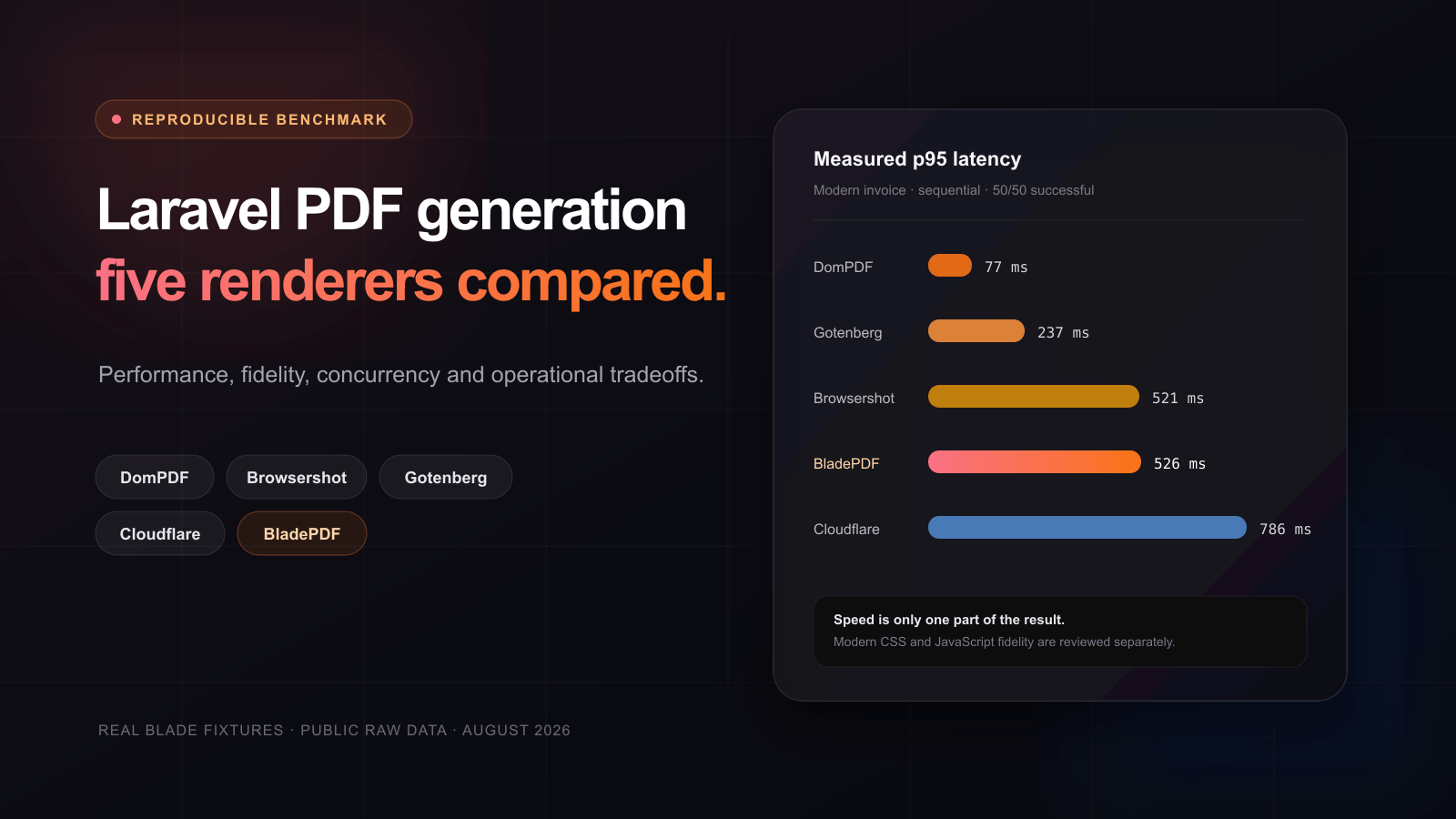
See how five Laravel PDF renderers handle real Blade invoices, modern CSS, JavaScript, local assets, concurrency, memory and operational ownership.

Puppeteer PDF in production
Fix the failures that appear after the first Puppeteer PDF works: too many active pages, leaked contexts, browser disconnects and missing assets. Includes a tested concurrency gate and a deployment checklist.
Render this invoice inside your Laravel application.
Start with 200 PDF generations per month on the free plan. No browser binary, Node.js runtime, or Docker image required.
Was this article helpful?
Your answer helps shape future technical guides.